
IPTV EPG Not Working? Fix an Empty Guide or Wrong Times
Separate a missing schedule from a playback problem, then check the right setting.
If IPTV channels play but the programme guide is empty, begin with guide data, not a new subscription. Check whether the issue affects every channel, confirm your device time and refresh the guide using your player's documented controls. If programmes appear at the wrong hour, compare the TV time zone and any existing guide offset before changing either.
Commercial disclosure: This guide is published by TereaTV, which markets IPTV subscriptions. It describes troubleshooting checks, not a claim that a particular package includes every channel's guide or that these steps fix every provider issue.
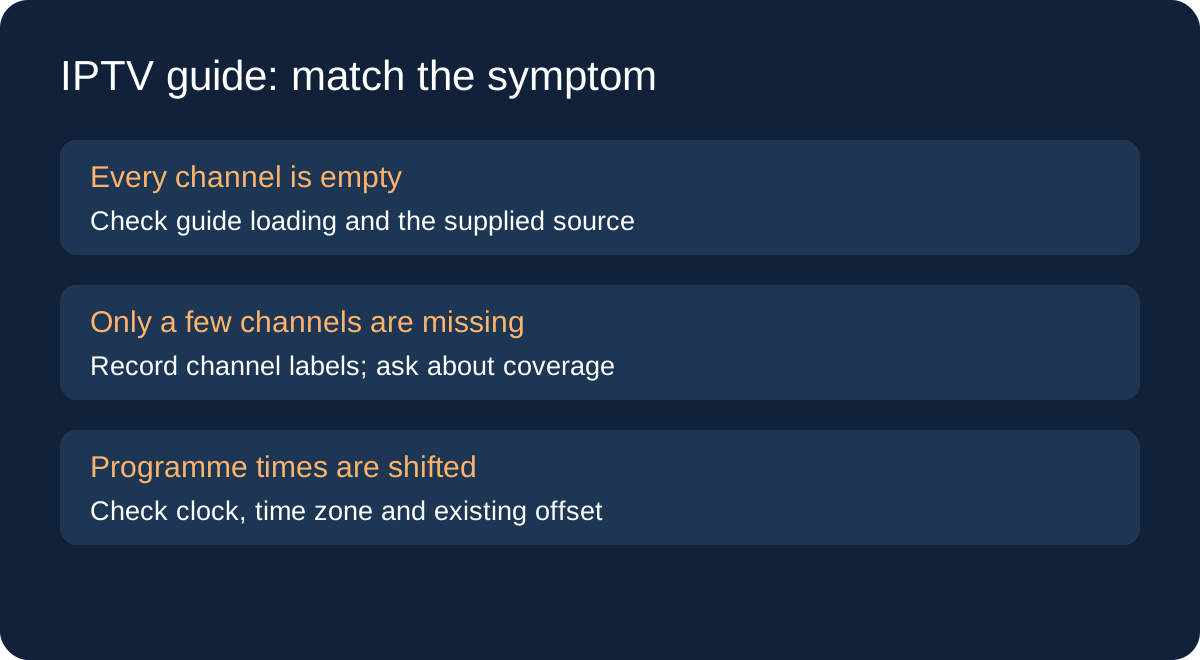
EPG not working: identify which problem you have
EPG means electronic programme guide: the schedule shown alongside channels. A live stream and its schedule are different information, so successful playback does not prove that the guide is complete. Likewise, a filled programme grid does not prove the stream is currently playable. Note both results when asking for help.
- All channels say “No information”: check guide loading, your connection and whether the account has the expected guide source.
- Only some channels are empty: record the exact channel names and regional versions. Guide coverage or channel matching may be incomplete.
- Programmes appear, but at the wrong time: check the device clock, time zone and a possible player offset.
- Yesterday's schedule remains: inspect the last guide refresh if your player exposes it, then request one refresh through its normal settings.
1. Confirm the device clock and time zone
Look at the TV's current time and compare it with a reliable local clock. A correct hour alone is not enough: check the date and time zone too. On supported TCL Google TV models, the manufacturer's settings walkthrough documents automatic date and time, time-zone selection and the 24-hour format. Menu names vary across TV brands and software versions.
Use your device manufacturer's instructions and record the original setting before changing it. Do not repeatedly add an hour to both the TV clock and the app guide: two adjustments can hide the cause. If the clock is correct and only one channel is shifted, collect that example before applying a global offset.
2. Refresh the guide without replacing your account
Open the player's documented guide or EPG settings and check whether a refresh is available. Let that operation finish before judging the result. Some apps expose an update time or an error; others do not. Avoid inventing a refresh interval or assuming there must be a button with a particular name.
If setup requires a separate guide URL, use only the address supplied for your account. Do not paste a random public playlist or guide source over a working configuration. If you cannot identify the expected source, ask support to confirm it. Our Android TV setup and login guide covers the earlier account-entry checks.
3. Compare missing channels before changing everything
Test two or three channels with different names and note whether video plays, schedule entries appear and the programme title matches the broadcast. Regional versions can have different schedules. A channel label with “HD” or a region suffix may not map to the guide entry you expect.
If only a few channels are affected, send their precise labels to the provider. Ask whether guide coverage exists for those versions and whether their mapping needs correction. Renaming channels or switching sources at random can make the evidence harder to follow. An unavailable schedule cannot be created just by restarting a TV.
4. Check connection, app updates and restart
Check that the device has an internet connection, look for supported app and system updates, then restart once. Google's Google TV troubleshooting guide covers these general device steps. They can help isolate a device issue but do not establish that a provider's guide feed is healthy.
Do not start with a factory reset or clearing all app data. Those actions can remove settings or sign-in information. If support recommends a reset, first confirm what will be removed and that you have a secure record of the required setup details. Clearing a cache and clearing app data are different actions; use the instructions for your actual device.
5. Handle a one-hour guide shift carefully
A consistent shift across channels can be related to time settings, including daylight-saving changes, but it is not enough evidence to name the cause. Record the local date, time zone, the listed programme start and the programme actually playing. Compare several channels rather than relying on a single delayed event.
If your player documents an EPG offset, inspect its current value. Change one setting at a time only after establishing the device clock is correct. If a change makes the guide worse, restore the previous value. When just one channel differs, ask for a channel-specific check instead of shifting the entire grid.
Send support a useful report
- Device model, operating system and player version.
- Whether live playback works and how many guide channels are affected.
- Two example channel labels, date, time zone and expected versus displayed programme.
- Guide update time or exact error, if shown.
- The checks already completed and their results.
Crop screenshots to the problem area. Do not post passwords, complete playlist URLs, access tokens or account credentials in public comments. Use the provider's private support process when an account identifier is needed.
Before subscribing: test the guide you will use
During an available trial, inspect the channels and regional schedules that matter to you on your intended device. Confirm what guide coverage is offered and how missing entries are handled. A large advertised channel count is not a guarantee of a complete EPG. For match viewing, also use the live-sports trial checklist.
Quick answers
Does an empty EPG mean my subscription expired?
Not by itself. Check account status and playback separately; ask support if both fail.
Will reinstalling the app restore missing schedules?
Not necessarily. If guide coverage or channel mapping is missing upstream, reinstalling cannot supply it. Preserve your setup and investigate the symptom first.
Can I keep watching with an empty guide?
If an authorized stream still plays, a missing schedule alone may not prevent viewing. It can still affect your ability to plan what to watch, so report the missing data.
Check setup and trial details
Review the current terms and ask about the guide coverage you need before making a purchase.