
IPTV on a Samsung TV: Check the App Before Buying a Plan
Check the actual device before choosing a subscription.
By TereaTV editorial team · Published November 6, 2026
“Smart TV compatible” is too broad a promise to base an IPTV purchase on. A Samsung television's model, software and app store determine which player can be installed. A service subscription and a player app can also be separate products. This TereaTV guide gives buyers a device-first checklist before paying. It is commercial guidance, not a claim that TereaTV has a native app on every Samsung TV or that any specific channel is available.
TereaTV sells subscriptions. This guide offers buying and setup checks, not a claim of independent service testing or universal device support.
Check current TereaTV trial eligibility
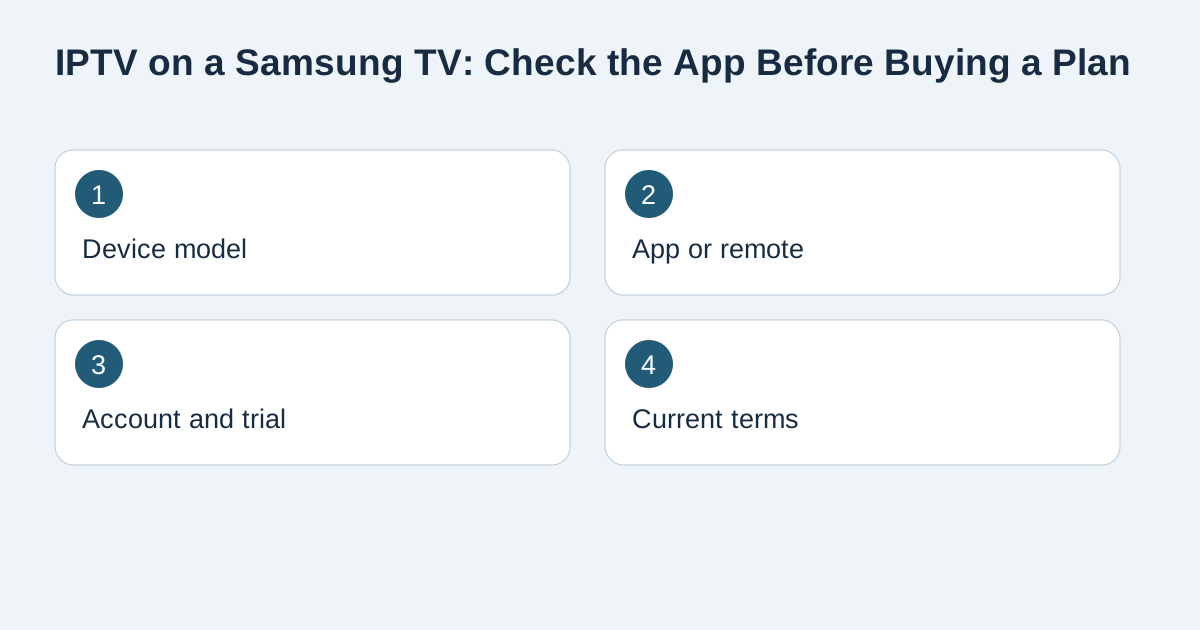
Find the exact model and software
Open the television's settings and record the model number and software version. Two Samsung TVs bought in different years may expose different app choices. Use the model on Samsung's support page when checking the relevant instructions. Do not assume an Android TV installation tutorial applies to a Samsung interface. The Samsung US app guide explains searching for and installing apps on supported Samsung TVs. It documents the television platform; it does not verify that a particular IPTV player or provider is available in your region.
Search the TV's own app store
From the TV itself, search for the specific player named in the provider's current setup instructions. Record the exact app name and developer. If it is absent, check the region and model with Samsung and ask the provider for another supported method. Do not enter your service credentials into a similarly named unknown app. A web page showing a player on a different brand is not proof it can run on your set. If the chosen app requires a separate licence or activation, include that charge when comparing subscription totals. Read the app's current terms separately from the provider's plan terms.
Distinguish player activation from service login
The player can ask for an app code while the IPTV service supplies a username, password, portal or playlist URL. These fields are not interchangeable. Ask which login method the provider supports for the exact player version. Keep credentials private; a playlist URL may include access tokens. If a player opens but the service list is empty, confirm the activation email and account state before buying another plan. Our login troubleshooting guide separates billing, player and service errors in a sequence that avoids duplicate payments.
Decide whether an external device makes sense
If the TV cannot install a supported player, a compatible external streaming device may be an alternative. That adds hardware, another remote or input selection, and possibly another app licence. Check whether the household is comfortable with that complexity before ordering. Do not assume that buying a streaming stick changes the number of simultaneous streams your service plan permits. The subscription allowance is a separate rule. If you already own a Firestick, our Firestick buying guide covers its own compatibility checks; use the Samsung guide when planning to rely on the television's built-in platform.
Run a short real-world test
If eligible for a trial, test on the actual Samsung TV during the hours you normally watch. Confirm that the player installs, accepts the correct credentials, navigates with the remote and exits cleanly. Check one normal program and the categories that matter to you, within the current offer's terms. A successful phone test does not prove the TV workflow, and a short trial cannot guarantee future catalogue, rights or uptime. If you need captions or a specific language, verify that on the relevant content rather than assuming the device setting supplies it to every stream.
Review the final order only after the setup is clear
Compare the plan term, total due, currency and connection allowance shown in the current checkout. Ask support whether the Samsung model and chosen player are supported and keep the answer. Start with a commitment you can evaluate in your own home; a longer plan will not turn an absent app into a supported one. TereaTV's trial and pricing pages can be used to check current eligibility and offers, but the live order terms control your purchase. Avoid unofficial downloads, account-sharing workarounds and promises of guaranteed access to particular broadcasts.
Frequently asked questions
Can I install any Android IPTV app on a Samsung TV?
No. Use the Samsung TV's own app store and the exact model's supported apps. Android TV instructions are a different platform.
Does a Samsung TV require a separate player licence?
It depends on the player chosen. Check the app's terms independently of the IPTV subscription.
Why does the player open but show no channels?
Confirm the service account, activation status and login method. A working player app does not prove a service login is active.
Is a streaming stick an alternative if the app is missing?
It can be, if the provider supports a player on that device. Include its cost and the extra setup steps in the decision.
Will a phone trial prove my Samsung setup works?
No. Test the actual television, player and remote before deciding on a long plan.
Does the trial guarantee a particular sports event?
No. Ask about current rights and availability in your location; a trial is a limited setup and viewing check.